Transferring chats and understanding Ban and Bye buttons on Live Chat

Transferring a chat
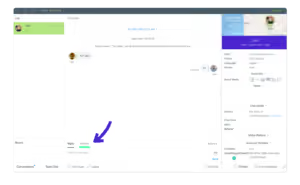
Transferring a live chat to another team member is easy. Simply click on the Transfer button, highlighted below, in the lower left-hand side of the Navigation bar during a chat:
You’ll then see the transfer screen, like so:
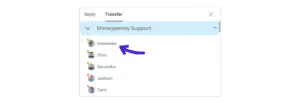
From here, you can then select which agent you’d like to transfer the chat through to by clicking on the agent’s name, as shown above. As soon as the agent replies to the chat, the transfer will be complete.
To transfer the chat to another widget, click on the arrow to the right of the widget name and select the name/department you wish to transfer to:

If you do not see the Transfer button at all, it is possible that the administrator has disabled this option; this can be amended within the Admin Portal. You would need to contact Moneypenny to change this for you.
When an agent does a widget transfer, the chat will automatically “detach” from the transferring agent. This means that the chat is no longer taking up an ongoing chat spot with the agent who prompted a transfer.
Hub
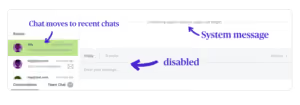
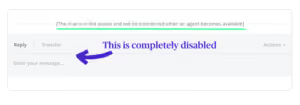
When the receiving widget is maxed out, the “detach” also occurs. The transferring agent will receive a system message that the chat has been added to a queue and will be transferred once an agent becomes available. They are unable to reclaim or re-transfer the chat whilst it’s in the queue.
Banning users
When you click the actions menu a Ban User option will display to the agent. As shown below:
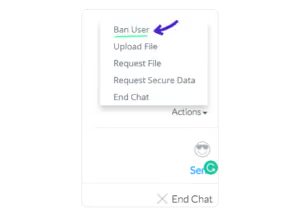
Agents will then see a pop-up confirming if they would like to place a ban on the visitor. Please note that once you ban a visitor, it will only last 30 days. If you want to block them completely from ever chatting again, you will need to get in touch with Moneypenny who can block the IP address.
Using the Bye button
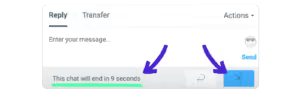
When you click the Bye button:

You’ll see the following pop-up, confirming if you’d like to end the chat, along with a timer:
Want to learn more?
If you need some more support then call us today on 0345 123 3700 and we will be more than happy to assist. Or why not check out our other useful Live Chat guides for more information.

Get your quote from the UK’s #1 provider today
Provide us with a few details and we’ll contact you to explain how Telephone Answering will work for your business. Alternatively, call 0333 202 1005 to find out more.
What to expect:
- Thousands of businesses on board
- Unmatched sector expertise
- Award-winning culture