The benefits of using post chat surveys

In this article we’ll discuss the Agent Survey feature; a post chat survey which can allow your visitors to provide some feedback when their chat is over. The survey is shown to the visitor despite who closed the chat. The feedback from these surveys can be seen by the agents in the Conversation HUB and for admin, they can view it via the Survey report in the Agent Performance analytics section. If you’ve set up this feature on your Admin Dashboard, but your visitors are not getting the survey when the chat ends, it might be because you have the old Moneypenny chat code snippet on your website. Check to see if it needs updating as this might be the issue! To set up this feature sign into your Moneypenny chat dashboard and select the ‘Options’ tab. Find the ‘Agent Survey’ section where there will be three separate options to choose from. You can pick between a five star rating, a smiley face rating or a 1-10 scale.
When you’ve chosen your survey style click on the ‘Save’ button. Once you’ve done this the survey will be shown to the visitor at the end of their chat, they will then have the option to complete the survey or close it. If a visitor clicks on any of the scoring metric (numbers, smileys, stars) the score is then recorded as part of the chat. When the visitor clicks on one of the metrics, a text field appears where the visitor can enter any further comments. These additional comments will only be recorded if the visitor has clocked on the ‘Summit’ button.
To view the survey results, admins will need to select ‘Survey’ report in the ‘Agent Performance’ analytics sections.
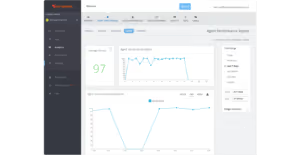
The survey will be normalised to a number between 0 (lowest rating) to 100 (highest rating). For the 5 star rating, it would be the below:
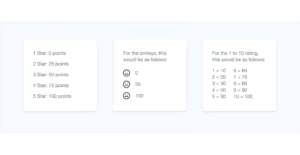
Note: to make it simple, the 1-10 rating starts at 10 rather than 0.
As well as this, agents will also be able to view the survey results under the Conversations tab section of Hub. You’ll be able to see something like the below displaying the results.
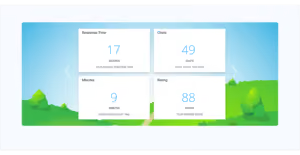
The stat numbers that will be shown in the above format will be the averages from the last seven days, with arrows showing if the number has gone up or down compared to the previous seven days. Remember, if the option to delete data after it’s been sent to the integration is enabled, the comments from the survey will not be saved.

Get your quote from the UK’s #1 provider today
Provide us with a few details and we’ll contact you to explain how Telephone Answering will work for your business. Alternatively, call 0333 202 1005 to find out more.
What to expect:
- Thousands of businesses on board
- Unmatched sector expertise
- Award-winning culture