The basics of rule configuration for Proactive Chat

The great thing about Proactive Chat is how versatile it can be, but this does mean it can get pretty complicated at times. To best use this tool, and engage with your web visitors, you will need to make various rules. The aim of this article is to explain the basics, which will cover 90% of your customers. Once you have this deeper understanding of Proactive Chat rules and how they work, you will be able to play around with setting up new rules to see what suits you and your business.
General Settings:
All of the rules you apply in the widget will have these settings:
- Enable Proactive Chats - You can enable or disable all rules.
- Proactive chat re-engagement delay - To prevent all additional proactive rules from being triggered, a cookie is set on the web visitor’s site with a future expiration date. The default for this is 30 minutes.
- Visitor cookie lifetime - The particular setting is advanced and is used to override when to consider the web visitor’s session has ended. In this case, the default session is calculated when their browser is closed, but you can also choose to assign a time period here instead.
Example one: Time on page and Page URL
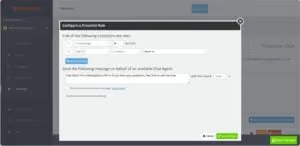
This rule will work if:
- Your web visitor has been on the same page on your site for 45 seconds
- That page also contains the string of characters ‘about-us’ in the Page URL (or address)
If all of the above actions are met the web visitor will then see a Proactive Chat invite from one of your online agents saying ‘Hey there! I’m a Moneypenny PA so if you have any questions, feel free to ask me now’.
Example 2: Time on page, New visitor & Time of day
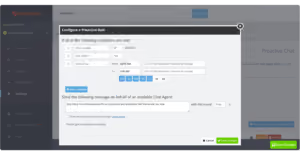
This rule will work if:
- Your web visitor has been on that particular page for 15 seconds
- It’s the visitor’s first time on your website
- The time is between 9am and 5:30pm
- It’s currently a weekday
If all of the above apply the visitor will have a Proactive Invite pop up from one of your online agents saying: ‘Hey there! I’m a Moneypenny PA so if you have any questions, feel free to ask me now’.
How to add a new rule:
To create a new rule go to the ‘Proactive Chat’ tab and click on the ‘add proactive chat configuration’ .
This will bring up the Rule Configuration popup window, and this is where you can configure an individual Proactive Chat Rule.
- By creating a condition it means all the rules must be met to start the proactive chat
- Chose a Rule Type
- Choose an Evaluation Operator and a value to compare
- And (+) or remove (-) a Rule Parameter
- The message you want to be presented to the user when this Proactive Invite fires
Remember, you’ll need to click on save to make sure these changes stick.
How to remove/delete a rule:
If you’re not happy with the rule you’ve made, you can just remove it!
Step one: Click on the ‘Delete’ button of the one you wish to remove.
Step two: Click on the ‘Save’ button and viola, rule deleted.
In short
Proactive Chat rules let you decide exactly when a chat invite appears, based on how a visitor is behaving on your site. Start with the general settings, build a rule from the conditions that matter most to your business (time on page, page URL, new visitor status or time of day are the most common), and save it to see it live.
FAQs
What is Proactive Chat?
Proactive Chat is a feature of Moneypenny's Live Chat widget that automatically invites a web visitor to chat, based on rules you set, rather than waiting for the visitor to start the conversation themselves.
What triggers a Proactive Chat invite?
A rule fires when all of its conditions are met at once, for example a visitor spending a set amount of time on a page, visiting a specific URL, being a first-time visitor, or browsing at a particular time of day. You can combine several conditions in one rule.
How long is the default re-engagement delay?
30 minutes. Once a visitor has seen a Proactive Chat invite, this cookie-based delay stops any other rule firing again until it expires. (Confirm this default hasn't changed before publishing.)
Can I turn Proactive Chat off completely?
Yes. The "Enable Proactive Chats" setting switches every rule off at once, without needing to delete individual rules.
What's the difference between the re-engagement delay and visitor cookie lifetime?
The re-engagement delay stops a visitor seeing repeated invites after one has already fired. Visitor cookie lifetime is a separate, advanced setting that controls when a visitor's session is treated as "ended" for rule purposes, by default when they close their browser.
Do I need coding knowledge to set up a rule?
No. Rules are built in the widget through the Rule Configuration window, by choosing a rule type, an evaluation operator, a value and a message, without writing any code.

Get your quote from the UK’s #1 provider today
Provide us with a few details and we’ll contact you to explain how Telephone Answering will work for your business. Alternatively, call 0333 202 1005 to find out more.
What to expect:
- Thousands of businesses on board
- Unmatched sector expertise
- Award-winning culture