Setting up your Recipients

Once you've done this, you'll find managing your calls so easy.
We like to make our apps do most of the work and the recipient tool is no exception. It's simple and takes just minutes to set-up and, to make it completely clear, we've outlined the different steps for you here:
Initial set-up
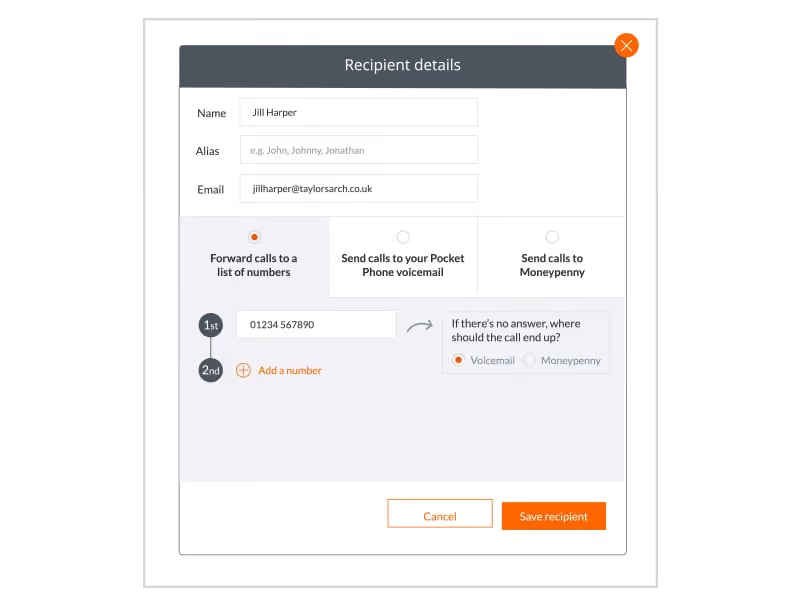
First things first, Recipients are people or departments. To set-up your recipients, you'll need to go to 'Call settings' and then 'Recipients' where you'll find the option to add a new employee or department. Select this and follow the below instructions:
1. Input the name and email address of a person or department.
2. Input up to three number for each recipient to receive calls on. Your Pocket Phone System will try all of the number either in order or at random, or you can send straight to voicemail or a Moneypenny PA.
3. Input an alias for them e.g. John, Johnny or Jonathan. Please note, Alias is only applicable on our Fly package.
4. Decide where the call should end up if they don't answer: voicemail or a Moneypenny PA.
Amending your recipients
Amend settings such as call path, ring time and voicemail options by clicking the 'Settings' button for that recipient. Here is what you'll find:
A list of numbers
Input three numbers for each recipient for them to receive calls on.
Another recipient
Send calls to another person or department.
Straight to voicemail
Send calls straight to Pocket Phone voicemail.
Straight to Moneypenny
Send calls to a Moneypenny PA.
Toggles
Turn this switch off to skip a number during the call process without deleting it.
Ring time
Control how long the call rings for.
In what order should the numbers be called?
Choose whether numbers are dialled either in order or random.
If there's no answer, where should the call end up?
Determine where the calls should go if there is no answer.
Advanced call settings
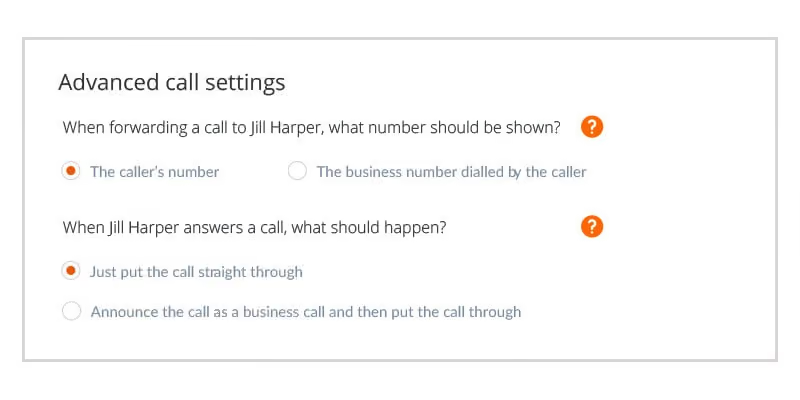
You choose what number should be shown. Dialled number display allows you to see either the caller's number or your business number - perfect if you have multiple numbers.
You can also select which voicemail greeting you wish to use by choosing from one of two options.
1. Standard greeting - listen to see if it is suitable.
2. Record your own voicemail greeting.
Lastly, you can also add an alias for each recipient in the Advanced call settings section, used for speech recognition.
We know that once you get your recipients set-up, the way you manage your calls will be completely transformed. But if there's anything you need to ask or need help with our technical team are here to help - just give them a quick call on 0333 202 1005 whenever you need.

Get your quote from the UK’s #1 provider today
Provide us with a few details and we’ll contact you to explain how Telephone Answering will work for your business. Alternatively, call 0333 202 1005 to find out more.
What to expect:
- Thousands of businesses on board
- Unmatched sector expertise
- Award-winning culture