Setting up your Digital Receptionist
Your Digital Receptionist is there to help you manage and field your calls.
Not sure which one's the best for you? Keep reading to learn more about the different features of Pocket Phone System's Digital Receptionist.
This guide assumes that you're on board with our Sprint or Fly package. If you're on our Run package, you can upgrade at anytime via your online portal.
Start by selecting which Digital Receptionist you want. Go to Call Settings > Digital Receptionist. Once clicked, you'll be presented with your three Digital Receptionist options; Welcome greeting, Auto-attendant or Speech recognition.
Here are some examples of each;
Welcome greeting: "Please hold whilst we connect you"
Auto-attendant: "Press 1 for Sales, press 2 for Accounts"
Speech recognition: "Please say the name of the person you wish to speak to"
Select your option and follow the relevant steps to activate your Digital Receptionist.
Welcome greeting set-up
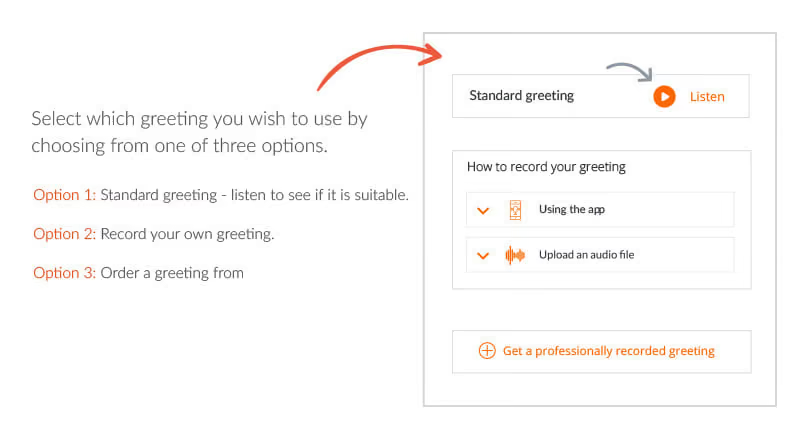
You can choose from a standard greeting, record your own greeting or have one professionally recorded by Moneypenny.
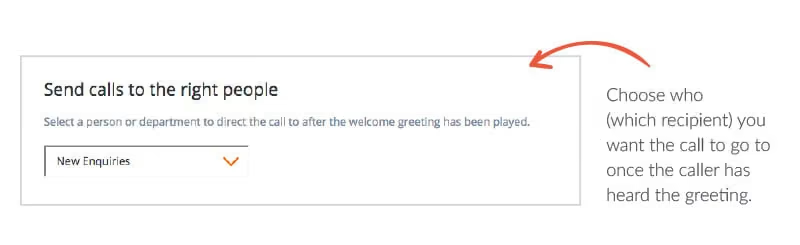
The first thing you'll have to do is decide where you want to send your calls to after your Welcome greeting has been played. Simply choose a person or department from the drop-down provided and this will activate.
Next, pick which greeting you want to put in place;
1. Standard greeting - we will have already provided you with a standard greeting which you can listen to here to see if it is suitable.
2. Record your own greeting - You can do this via the app or by uploading a pre-recorded audio file from your device.
3. Order a greeting from us - We will record a professional greeting for you if you're not keen on recording your own. Simply specify your script and preferred voice below and we’ll do the rest. Once you're happy with your greeting script, submit your order. Your recorded greeting will be available after 1 working day. In the meantime, your Digital Receptionist will use the standard greeting.
Auto-attendant set-up
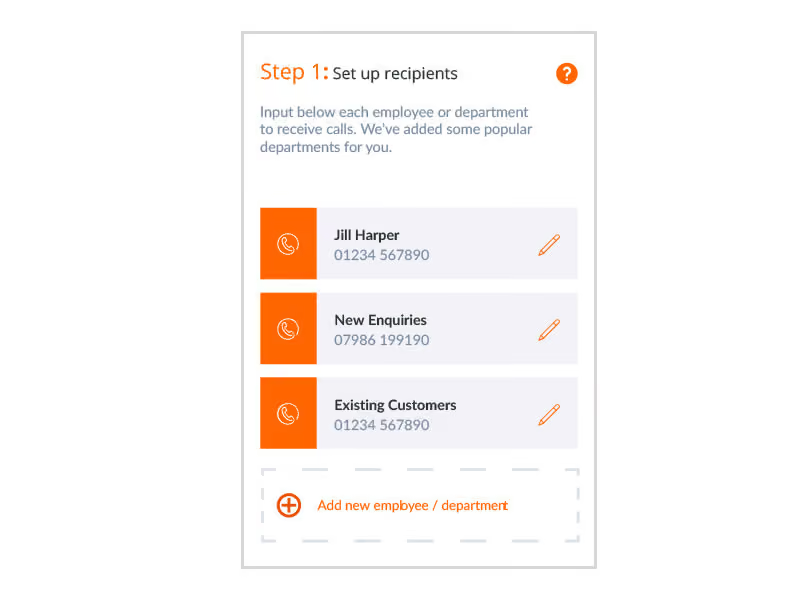
Use an auto-attendant to filter your calls by person or department (we call these recipients). Your callers will hear a greeting message and be prompted to select who they wish to speak to. To set-up your Auto-attendant, just follow these simple steps;
1. Input the names and email address of your chosen people or departments.
2. Input up to three numbers for each recipient for them to receive calls on.
Your Pocket Phone System will try all the numbers either in order or at
random.
3. Decide where the call should end up if they don’t answer:
voicemail or a Moneypenny PA.
4. Once you have set-up your recipients you simply need to drag and drop them onto a desired keypad option.
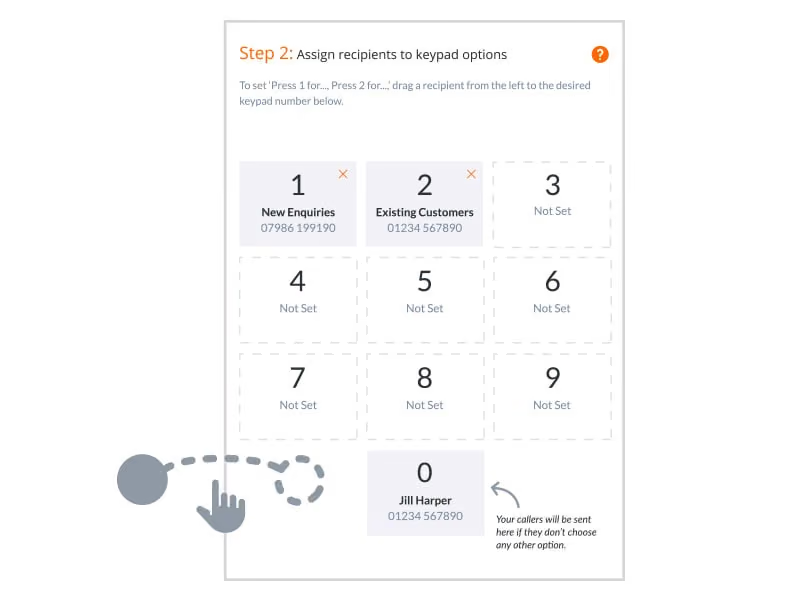
Once this has been done, all you need to do is select which greeting you wish to use by choosing one of the three options:
1. Standard greeting
2. Record your own greeting
3. Order a greeting from us
For any further information on these greeting, see the Welcome greeting set-up within this guide.
Speech recognition set-up
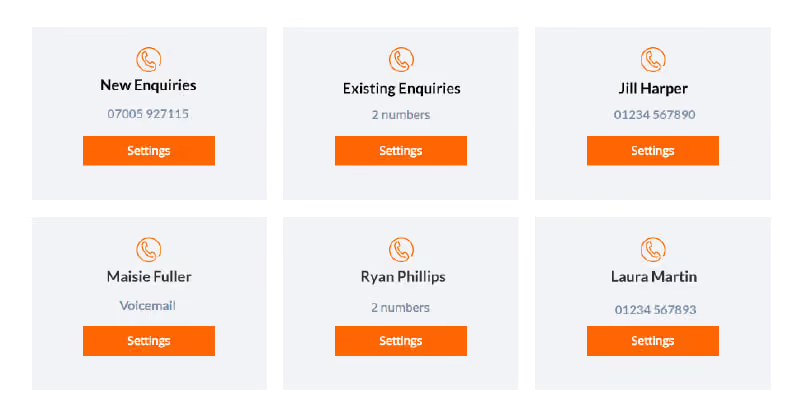
Prompt callers to say the name or department they wish to speak to. Simply add each employee or department that will receive calls. When asked for the call will route to that recipient.
You'll also be asked to add an alias for each recipient e.g. John, Johnny, Jonathan.
Once this has been done, all you need to do is select which greeting you wish to use by choosing one of the three options:
1. Standard greeting
2. Record your own greeting
3. Order a greeting from us
For any further information on how to set-up your Digital Receptionist, see the Setting up your Digital Receptionist guide or for technical support feel free to give us a ring whenever you need on 0333 202 1005.

Get your quote from the UK’s #1 provider today
Provide us with a few details and we’ll contact you to explain how Telephone Answering will work for your business. Alternatively, call 0333 202 1005 to find out more.
What to expect:
- Thousands of businesses on board
- Unmatched sector expertise
- Award-winning culture