Setting up Moneypenny trigger

In this blog post we’ll talk you through the process of setting up a Moneypenny trigger and action to complete your integration.
Tips on terminology:
- Zap – a workflow process created within the Zapier platform to connect the apps you use day-to-day e.g. Moneypenny messages being dropped straight into your company's CRM platform
- Trigger – an event that starts a Zap e.g. a Moneypenny message being sent from your PA or receptionist
- Action - what you would like to happen at the end of the Zap e.g. a lead being created in your CRM platform as a result of Moneypenny messages being sent
Essentials:
- You will need a suitable Zapier account
- You must be an Moneypenny admin user
How to set up a Moneypenny trigger
All Zaps set up will require this step if a pre-built template is not being used.
1. Log in to your Zapier account and navigate to your dashboard.
2. Click ‘Create Zap’ which can be found in the top left corner of your screen.
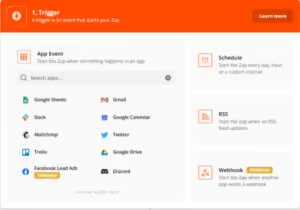
3. Search for ‘Moneypenny’ on the app event search box and select the top option, which will be the newest version. This will take you to the trigger setup box.
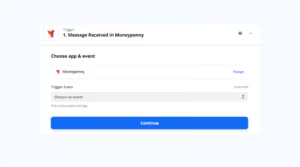
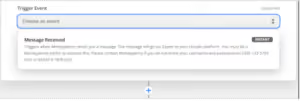
4. Click on the ‘Trigger Event’ box and select ‘Message Received’ and then press 'Continue'.
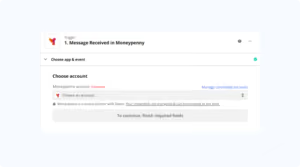
5. Choose your Moneypenny account. If your Moneypenny login details are not already stored, you will need to click ‘+Connect new account’.
6. Log in with your Moneypenny credentials (the ones you use for the app/portal) and then click continue. Remember, you must be an admin to do this.
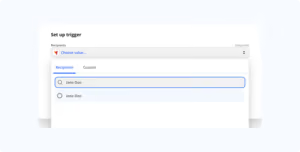
7. You will need to set up your trigger by selecting recipients. In the ‘Choose value’ box search for the name or call type that you wish to create the Zap for e.g. you may be setting up a Zap for your new enquiry calls to drop into your chosen platform. We recommend that you select just one recipient or call type per Zap set-up.
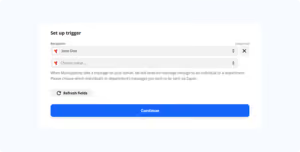
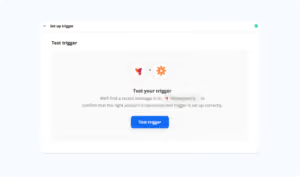
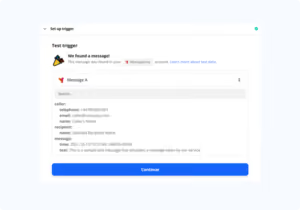
8. Once your recipient has been selected, you will need to click ‘Test trigger’. Once the test has run, click 'Continue' and begin adding your actions.
Need help? Give our team a call on 0345 1233700.

Get your quote from the UK’s #1 provider today
Provide us with a few details and we’ll contact you to explain how Telephone Answering will work for your business. Alternatively, call 0333 202 1005 to find out more.
What to expect:
- Thousands of businesses on board
- Unmatched sector expertise
- Award-winning culture