Managing call paths using the Pocket Phone System app
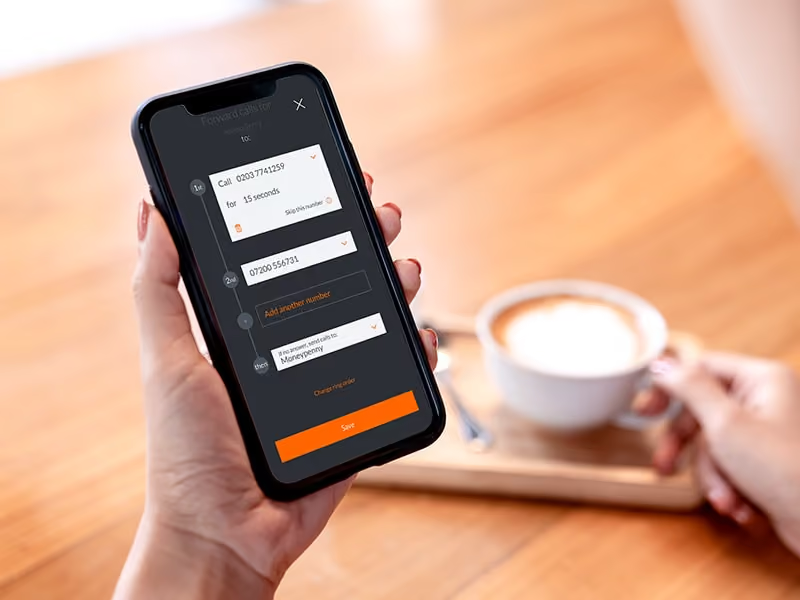
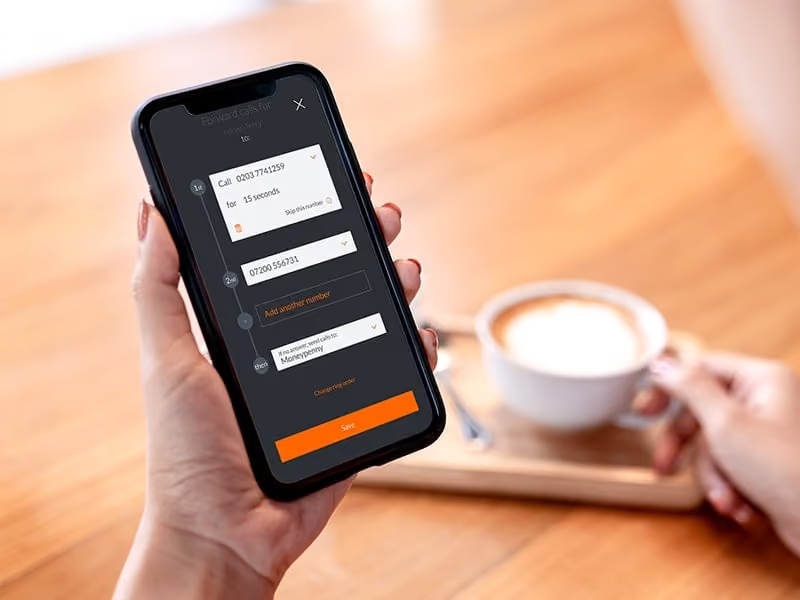
Moneypenny's Pocket Phone System app allows you to easily manage and personalise your recipient’s call paths.
And it couldn’t be quicker! Simply head to your call settings in the Pocket Phone System app to get started, and follow these 5 steps:
Step 1: Head to call settings
First things first, head to the 'Call Settings' tab on your app homepage.
From here, you’ll be able to view all of your recipients, each with their own individual 'Settings' button. Simply click on this button to manage their call path.
Step 2: Manage your recipient’s call path
Within the settings for each recipient, you’ll see a list of numbers. Simply click to edit the call path to the numbers you would like the call to go through to, and in what order, as well as allocating how long for.
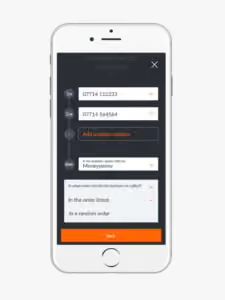
Here, you can also decide where you want the call to divert to if there’s no answer. For example:
- MOBILE – 5 seconds
- HOME – 5 seconds
- OFFICE – 5 seconds
- MONEYPENNY
Step 3: Voicemail or Moneypenny?
What if nobody’s available to take the call? In each individual call setting you can decide where to direct your calls if all other lines are unavailable; whether it be to a personalised voicemail or to a dedicated Moneypenny PA – who will never miss a call.
Step 4: Advanced call settings
Now that you’ve decided where you want your calls to go, you’ll need to go to your 'Advanced Call Settings'.
From here, you can easily customise the number that will display for any forwarded calls and determine what happens when calls are picked up i.e. put the call straight through to the recipient or announce the call as a 'business call' before it is put through.
Step 5: Customise your voicemail settings
Within 'Voicemail Settings' you can select, record or purchase voicemail greetings for your business – and decide whether to have your voicemail messages emailed or transcribed.
Need help setting up your app? Call us on 0333 202 1005 and we’ll be happy to help. This guide assumes you’re already onboard with our Sprint or Fly package. If you’re currently on our Run package, you’re welcome to upgrade at any time.

Get your quote from the UK’s #1 provider today
Provide us with a few details and we’ll contact you to explain how Telephone Answering will work for your business. Alternatively, call 0333 202 1005 to find out more.
What to expect:
- Thousands of businesses on board
- Unmatched sector expertise
- Award-winning culture