Using GPS in the Moneypenny app

The Moneypenny app is the perfect way to keep in touch with your PA.
In fact in just 4 super-simple steps, you'll have the GPS tool activated. Keep reading to find out how to get set up.
1. Start by creating your own GPS Status
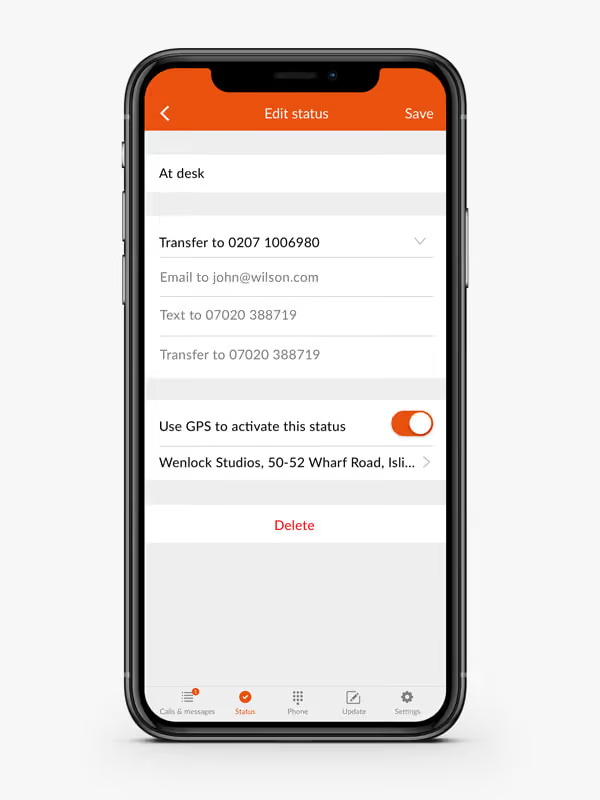
Click on the Status tab in the navigation bar at the bottom of your app screen. This will take you through to the main Status screen where you can compose your own library of Statuses.
2. Personalise your Status
First, you will be asked to write a Status name; we recommend something simple like ‘in a meeting’ or ‘at home’. You will also have to enter in your preferred call handling instructions for this Status; something like ‘text my mobile’ or ‘email’ usually works best. Once activated, whenever your Status changes, your Moneypenny PA will be notified automatically.
3. Set your location
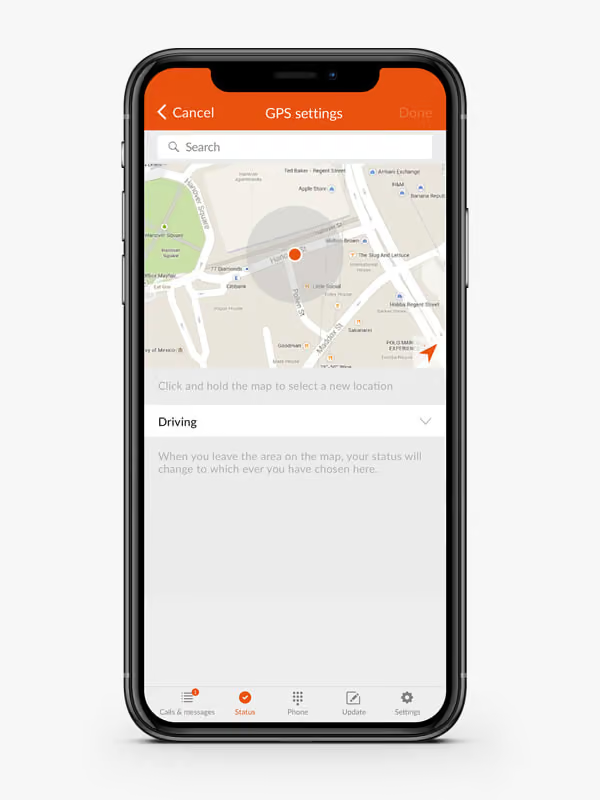
When you’ve selected a Status name and entered in your call handling instructions, the last thing to do is allocate a location. To do this, either tap on your selected area on the map shown or manually look up an address in the search bar provided.
4. Choose a leaving Status
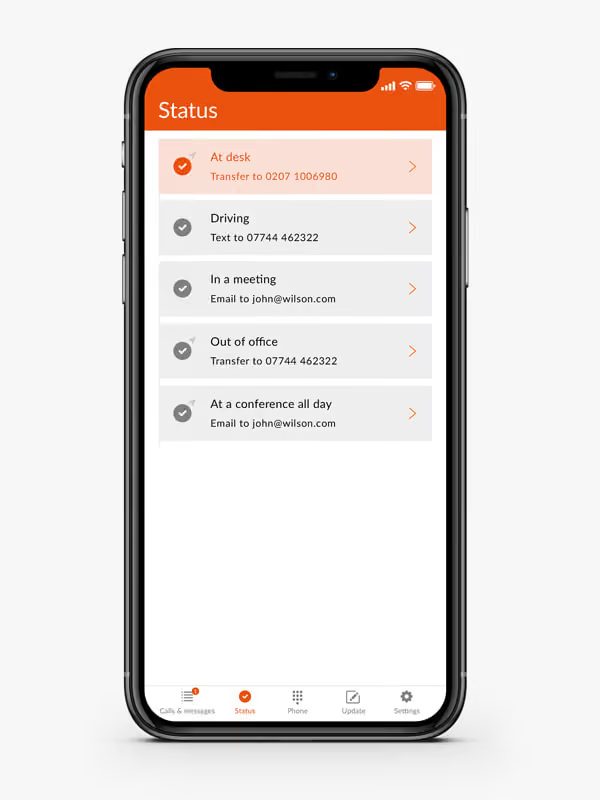
You’ll also need to set another Status for when you leave one of your selected locations. This is so your PA knows what to tell your callers whilst you move from one location to the other. Simply select how you want your calls to be handled in-between locations and your PA will take care of the rest.
If at any time you're unsure about how to use this feature, give us a call on 0345 123 3700 and talk to one of our technical specialists - they know everything there is to know about this stuff and will be happy to help you.

Get your quote from the UK’s #1 provider today
Provide us with a few details and we’ll contact you to explain how Telephone Answering will work for your business. Alternatively, call 0333 202 1005 to find out more.
What to expect:
- Thousands of businesses on board
- Unmatched sector expertise
- Award-winning culture