How to link your 'Out of Office' status through Microsoft Teams

As part of our world-first integration, Moneypenny has the ability to automatically read 'Out of Office' statuses set within Microsoft Teams and internal 'Out of Office' auto-replies set within Microsoft Exchange. In order to activate this feature, we need to have access to your Microsoft Teams presence status, which you can do in a few simple steps:
1. We will send you (Global Microsoft Teams Administrator) a link,
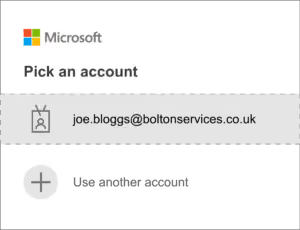
2. Once clicked, you will be prompted to log in to your Microsoft account.
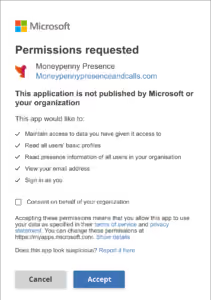
3. From here, you will need to read the requested permissions and select 'Accept'.
4. Your will then be navigated to a 'Success' message within the Moneypenny website - your Teams presence status not integrated.
Setting your status:
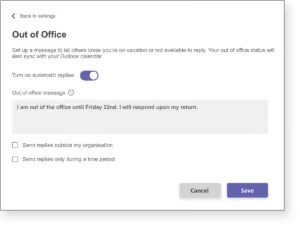
1. Select 'Set status message'
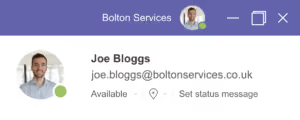
2. Select 'Schedule out of office' (internal status only)
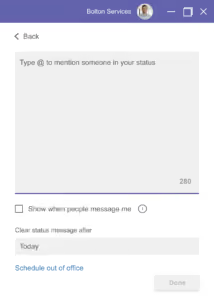
3. Create an 'Out of office message' and save
4. If creating an Automatic Reply within Microsoft Exchange, Moneypenny will access the 'Inside My Organization' message.
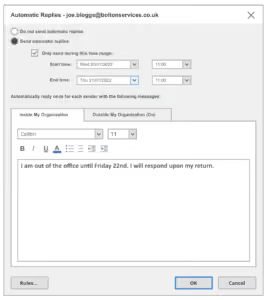
After following these simple steps, we'll have access to your internal 'Out of office' statuses which your Moneypenny Receptionist will follow when handling calls. It's worth noting that if these instructions aren't absolutely clear, they will refer to your default call handling preferences.
That's it! If you need support with any of these steps, don't hesitate to contact out team on 0345 123 3700 and we'll take you through it.

Get your quote from the UK’s #1 provider today
Provide us with a few details and we’ll contact you to explain how Telephone Answering will work for your business. Alternatively, call 0333 202 1005 to find out more.
What to expect:
- Thousands of businesses on board
- Unmatched sector expertise
- Award-winning culture