Guided browsing for live chat

This article aims to give an overview of the Guided Browsing feature that redirects the visitors page whilst in a chat. By using the Guided Browning feature whilst in a chat, the agents can redirect the visitors page. If they wish to direct the visitor to a different page the agent can use the /goto command. The current chat will remain open if your Moneypenny chat JavaScript is installed on the target page too.
How to use the Guided Browsing feature:
One way to use this command is to enter the whole URL like the below:
\goto http://www.moneypennychat.com/live-chat-integrations
The other way to use it is to use a relative path of your domain:
\goto/features
The fastest way to redirect visitors would be using shortcuts. To do this go to the Admin Dashboard then Settings > Agent Settings > Shortcuts tab and define a rule. For example:
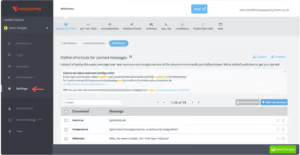
In the above example you’ll need to enter \goto in the chat and then direct the visitor to the page you wish them to go to.
Sample Guided Browsing:
The agent can copy and paste link into the chat making sure to use the /goto command beforehand.
When the agent has executed the above example they will then need to press enter. The chat agent will then be able to see their visitor is on the page they sent them too with a system message in the chat.

Get your quote from the UK’s #1 provider today
Provide us with a few details and we’ll contact you to explain how Telephone Answering will work for your business. Alternatively, call 0333 202 1005 to find out more.
What to expect:
- Thousands of businesses on board
- Unmatched sector expertise
- Award-winning culture